
These steps are for Flare fireplaces with an SIT control system.
- Turn on the fireplace with the fireplace remote (the black remote).
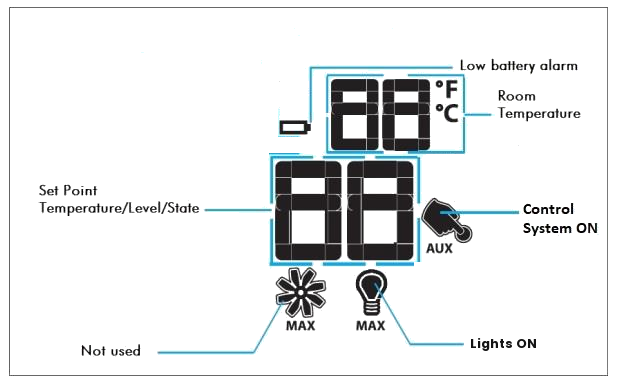
- Check that the light function is ON on the black remote. The light bulb icon should show on the screen. If it doesn’t, press the lower button to move through the functions until the light bulb appears, then set it to ON.
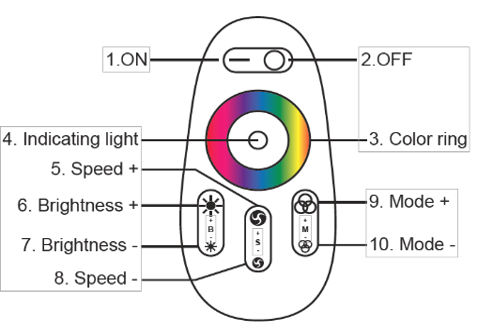
- Turn on the lights with the LED remote (the white remote) by pressing ON, the (–) side of the top switch (#1 on the diagram). The orange indicating light (#4) should come on when you press it.
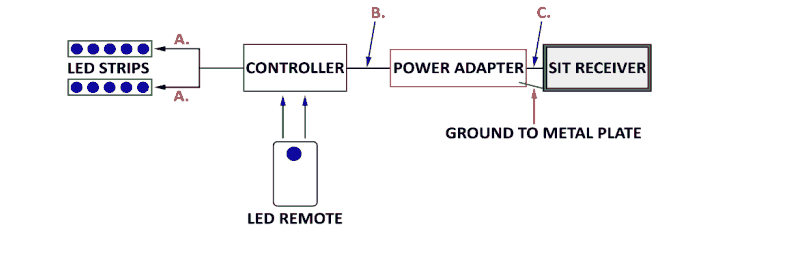
- Check the LED wiring before you call your installer. Use the diagram below and make sure each connection is secure:
- A. Both LED strips are plugged into the controller.
- B. The controller is connected to the power adapter. The red wire should be on the + terminal of the controller.
- C. The power adapter is plugged into X11 on the SIT receiver.
- Ground: the power adapter’s ground wire is attached to the metal plate.
- Watch the video: LED troubleshooting video
Note: If your LEDs were ordered with independent power (their own plug), they work without the fireplace on. Skip steps 1–2 and make sure the plug is connected to a working outlet.
More information: see RGB LED Installation on page 67 of the Flare SIT Install Manual.
If the remote still doesn’t control the lights, see “How do I resync my LED remote?” in this FAQ. If the lights still don’t work after these checks, contact your installer or Flare dealer.
